
Direct Answer
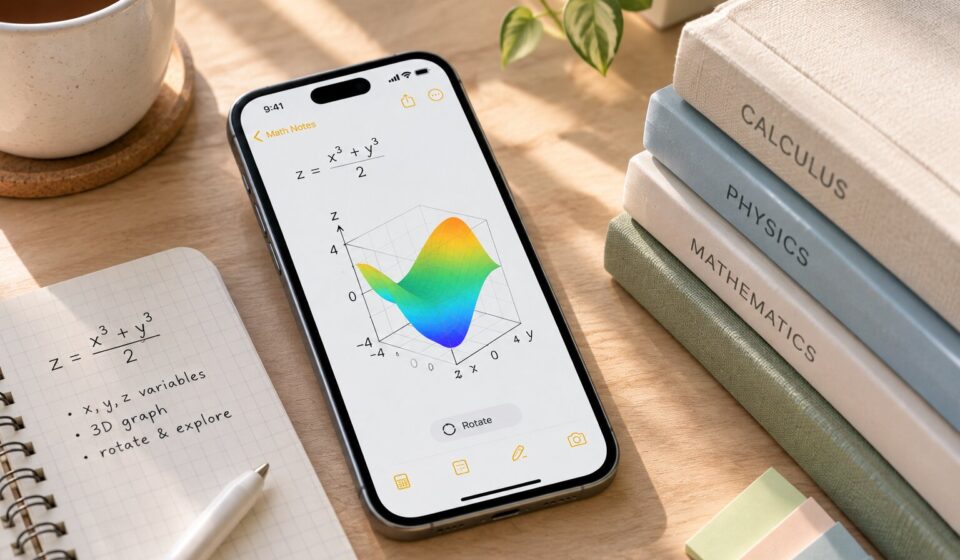
Apple Math Notes 3D graphs let you enter an equation with z on the left and x and y on the right, insert an interactive surface, and rotate it to inspect the result. Use the Notes app’s folders, tags, Smart Folders, and Markdown export to keep the equations, explanations, and project files organized.

Why Math Notes and Notes Work Better Together
Math Notes handles equations and interactive surfaces, while the Notes app provides folders, tags, Smart Folders, and export tools. Treating them as two parts of one workflow keeps calculations connected to explanations and project context.
This separation also prevents a common mistake: expecting every Notes document to behave like the Calculator app’s Math Notes workspace.
Key Takeaways
- Create Apple Math Notes 3D graphs from equations that define z with x and y.
- Rotate and reposition a graph to study the surface from multiple angles.
- Use folders, subfolders, and tags to organize related math and project notes.
- Export written notes as Markdown, then verify that technical content was preserved.
How to Create a 3D Graph in Apple Math Notes
Open Math Notes through the Calculator app and create or select a math note. The graph appears beside the equation, making it easier to connect the expression with its visual form.
Step 1: Open Math Notes
- Open the Calculator app on the iPhone.
- Tap the control for changing calculator modes.
- Select Math Notes.
- Open an existing math note or create a new one.
Step 2: Enter a 3D Equation
Type or write an equation with z on the left side and x and y on the right. For example, z = (x³ + y³) / 2 defines a surface in three-dimensional space.
Step 3: Insert the Graph
- Tap the equation after entering it.
- Select Insert 3D Graph from the available menu.
- Assign variables to the appropriate axes if prompted.
Step 4: Rotate and Adjust the View
Tap the graph and drag from the middle to inspect the surface from different angles. Drag its edge to reposition it. Additional equations can be added to compare surfaces or study intersections.
Controls and availability can vary by device and software version, so check Apple’s current instructions if an option is missing.
How to Organize Math Notes and Documents
1. Create Folders for Different Subjects
Use broad folders such as Calculus, Physics, Engineering, or Research. Add subfolders for derivatives, integrals, experiments, or individual projects.
2. Use Tags to Find Related Notes
Add tags such as #calculus, #physics, or #research. The same tag can connect related notes stored in different folders.
3. Set Up a Smart Folder
Create a Smart Folder and select filters that automatically collect notes matching a chosen tag or criterion.
4. Keep Equations and Explanations Together
Store the equation, calculations, graph, and a short explanation in the same note. Use descriptive titles such as “Comparing Two Surfaces” instead of generic names.
How to Export Notes as Markdown
- Open the note in the Notes app.
- Tap the Share button.
- Select Export as Markdown, checking additional options if needed.
- Choose where to save or send the file.
Open the exported file and confirm that equations, images, graphs, and formatting were preserved. An interactive graph may not behave the same way outside Math Notes.
Frequently Asked Questions
Can Apple Math Notes create 3D graphs?
Yes. Apple Math Notes 3D graphs support equations that place z on the left and use x and y on the right. The inserted surface can be rotated for inspection.
Is Math Notes the same as the Notes app?
No. Math Notes is a math workspace accessed through Calculator. The Notes app provides broader writing, folder, tag, Smart Folder, and export features.
Can I organize Math Notes into folders?
Yes. Use the Notes app’s folder system, subfolders, tags, and Smart Folders to organize saved work.
Can I export Apple Notes as Markdown?
Yes. Notes supports Markdown export, but technical formatting and interactive content should be checked after export.
Do 3D graphs work on every iPhone?
Availability depends on the device and software version. Consult Apple’s current compatibility documentation if the feature does not appear.
Where 3D Graphing Fits in a Study Workflow
A useful workflow begins with a question, not a graph. Write what the equation is supposed to model, create the surface, rotate it to inspect the behavior, and record what the shape reveals.
This turns the iPhone from a calculation tool into a compact visual notebook for study, technical exploration, and project documentation.
The Bottom Line
Apple Math Notes 3D graphs turn equations into interactive surfaces, while Notes organization tools keep the supporting work easy to find. Build the graph in Math Notes, document what it shows, and use folders, tags, Smart Folders, and verified exports to maintain a useful technical archive.
You might also like: