
Direct Answer
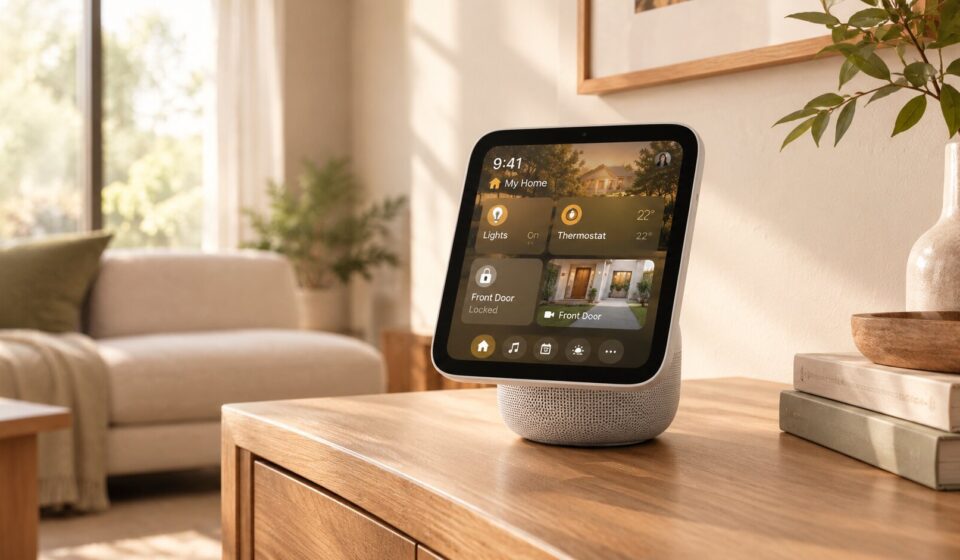
Apple HomeView can act as a central smart-home display for compatible Apple Home and Matter accessories. Use its touchscreen or Siri AI to control lights, thermostats, locks, blinds, and cameras, while personalized home screens, widgets, and privacy settings help multiple household members use the display safely.

Why a Shared Home Display Changes Daily Control
A wall or tabletop hub reduces the need to find a phone whenever someone wants to check a camera, adjust a thermostat, or turn off a room. The useful measure is not how many features HomeView lists, but how many repeated household actions it makes simpler.
Map the display to common routines such as arriving home, cooking, bedtime, and checking deliveries. That keeps the Apple HomeView smart home useful instead of turning it into another screen no one maintains.
Key Takeaways
- Control compatible lights, thermostats, locks, blinds, sensors, and other accessories.
- Personalize the display for as many as six recognized household members.
- Monitor as many as nine compatible camera feeds through the Home Camera face.
- Use conversational Siri AI requests for supported smart-home actions.
- Confirm Apple Home or Matter compatibility before buying devices.
How to Set Up Apple HomeView
HomeView is designed to become a central point for a connected house. Start with placement, compatibility, and household access rather than pairing devices at random.
1. Choose Where to Place the Display
Use a tabletop model in a kitchen or living room when timers, lights, music, and shared information matter most. A wall-mounted model near an entryway may be better for locks and security cameras. Keep the display visible and reachable without blocking a walkway.
2. Connect Compatible Accessories
Add supported devices through Apple Home and organize them by room. Compatible products may include lights, thermostats, locks, blinds, cameras, and sensors. A product with Wi-Fi or its own app is not automatically compatible with HomeView.
3. Set Up the Personal Experience
HomeView can recognize up to six people and show a different home screen for each one. Personal-context requests may require a registered Apple Intelligence-enabled iPhone or iPad on the same Wi-Fi network, recently unlocked, and running supported software and languages.
How to Control Your House With Apple HomeView
Once accessories are connected, the Apple HomeView smart home can handle routine controls directly from the screen or through Siri AI.
Use the Touchscreen
- Turn compatible lights on or off.
- Adjust a connected thermostat.
- Lock supported smart locks.
- Open or close compatible blinds.
- View available security-camera feeds.
- Open favorite accessories from the Home Modular face.
The available controls depend on the products installed and how they are configured.
Use Siri AI for Voice Commands
- Lighting: “Turn off the living room lights.”
- Temperature: “Adjust the thermostat to 24 degrees.”
- Door locks: “Lock the front door.”
- Blinds: “Close the living-room blinds.”
- Monitoring: “Show me the camera feeds.”
Actual results vary by accessory, configuration, permissions, and Siri capabilities. Do not assume every multi-step or security-sensitive command will be available.
How to Use Camera and Security Features
The Home Camera face can show up to nine compatible feeds at once. That can help someone check a delivery, look in on a pet, or review several areas without switching apps.
Compatible cameras and a supported iCloud+ subscription may enable encrypted recognition for people, familiar faces, pets, packages, and vehicles. Verify camera support, recording options, notifications, subscriptions, and account permissions before relying on the setup for security.
How to Personalize the Display
Choose a Display Face
- Photos: Shows images from a selected shared album.
- Flow: Presents interactive artwork that responds to presence and movement.
- Snoopy: Displays animations tied to time, weather, and occasions.
- Home Modular: Surfaces favorite smart-home accessories.
Add Widgets for Everyday Tasks
Widgets and apps can surface calendars, reminders, music, timers, and other household information. Separate personalized screens let several people use the display without combining all personal information into one shared layout.
Is Apple HomeView Private and Secure?
Apple says Siri requests can be processed on the device or through Private Cloud Compute, where request data is not stored or made accessible to Apple or others. Some compatible camera-recognition features are described as end-to-end encrypted.
Review who can access the home, which devices can provide personal context, what can unlock doors, and which notifications cameras send. Platform protections cannot compensate for weak household permissions or poorly secured accessories.
For the official feature list, compatibility details, and availability information, see Apple’s HomeView announcement in the Apple Newsroom.
Frequently Asked Questions
Can HomeView control devices from other brands?
Yes, when those products support Apple Home or Matter. Verify the exact model and required bridge before buying.
How many people can use HomeView?
HomeView can recognize up to six people and provide personalized home screens. Some personal-context features require a compatible registered iPhone or iPad.
Can HomeView show several cameras at once?
Yes. Apple says the Home Camera face can display up to nine compatible video feeds simultaneously.
How The Alchemist Helped Jake Kiszka Claim His Creative Path
Jake Kiszka explains how Paulo Coelho’s fable helped him understand personal legend, confront fear, and turn artistic purpose…
Can I control HomeView without touching it?
Yes. Siri AI can manage supported accessories through voice requests, subject to compatibility, configuration, and permission limits.
Is Apple HomeView available now?
Apple announced HomeView in October 2026 with availability scheduled to begin November 13. Check Apple’s current regional store or announcement for ordering information.
Build a Household Control Map
Before adding more devices, write down the actions each person performs every day: arrival, cooking, schoolwork, entertainment, bedtime, and security checks. Assign the Apple HomeView smart home display a small number of useful controls for each routine instead of placing every accessory on the first screen.
- Arrival: entry light, front-door lock status, and camera view.
- Kitchen: timers, temperature, reminders, and nearby lighting.
- Evening: blinds, shared music, and common-room scenes.
- Bedtime: lock confirmation, selected lights, and camera notifications.
Review this map after a week. Remove controls that no one uses and move high-frequency actions closer to the home screen. A shared display becomes valuable when its layout reflects household behavior rather than the installer’s first guess.
The Bottom Line
Apple HomeView combines smart-home controls, cameras, personal information, and entertainment in one shared display. Confirm compatibility, organize accessories clearly, configure household access carefully, and test important routines before making the Apple HomeView smart home central to daily life.
Also worth checking out: