Direct Answer
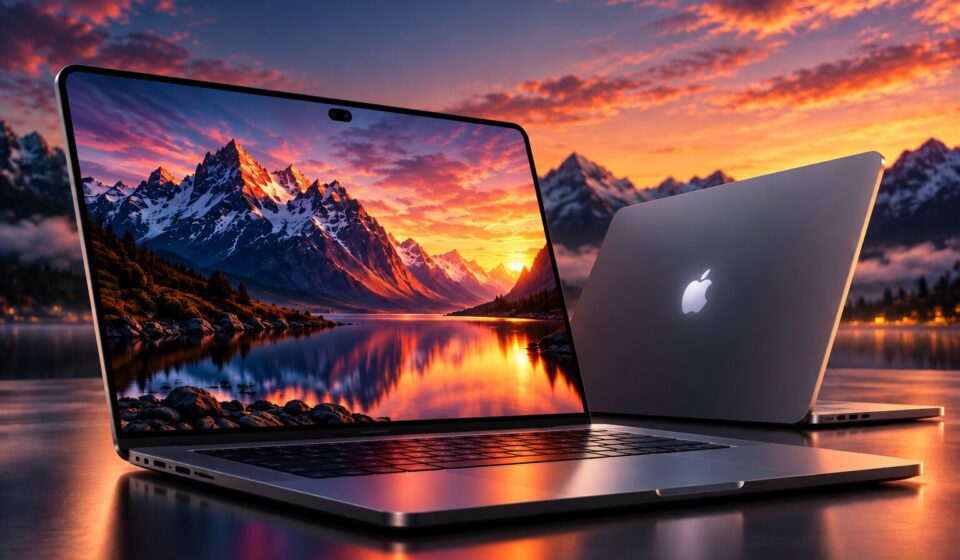
The latest 14-inch and 16-inch MacBook Pro models introduce something Mac users have not had before: the ability to interact directly with the display using their fingers. The PROLED XDR touchscreen adds another way to navigate macOS, work with images, organize windows, and handle everyday tasks.
The new MacBook Pro touch controls let users tap buttons, scroll through pages, zoom into photographs, and move items around the screen. Apple has also updated macOS 27 to make parts of the interface easier to operate by touch.

Understanding the Touchscreen Hardware
The touchscreen is part of Apple’s new PROLED XDR display, which uses tandem OLED technology. The 14-inch and 16-inch models combine touch sensors with display specifications intended for detailed creative work.
Apple lists the following display features:
- Up to 2,000 nits of peak brightness
- A 10,000,000:1 contrast ratio
- A 120Hz variable refresh rate
The touchscreen adds direct interaction without turning the MacBook Pro into an oversized tablet. Its traditional keyboard and Force Touch trackpad remain available.
You can read more about the hardware and touchscreen introduction in Apple’s official MacBook Pro announcement.
Five Ways to Interact With the Screen
If you’ve used an iPhone or iPad, many of the gestures will already be familiar. The main MacBook Pro touch controls include five basic interactions.
Select and open with a tap
Touch an icon, button, menu item, or document to select it. You can open an application from the Dock or choose an option without moving the pointer.
macOS also adapts certain interface elements when it detects finger input, making some smaller controls easier to select.
Move through content with a swipe
Swipe your finger across the display to scroll through webpages, documents, and lists. This is convenient when reading a long article or reviewing information.
Examine details with pinch gestures
Place two fingers on the display and move them apart to zoom in. Bring them closer together to zoom out.
This is useful when inspecting photographs, illustrations, and other visual material.
Reposition content by dragging
Touch an item and move your finger across the screen to drag it elsewhere. Apple demonstrates this interaction with presentation slides, allowing users to move slides within a presentation.
Arrange windows with touch
Double-tap a window to make it fill the screen. You can also flick a window toward the left or right side to use macOS window tiling.
How macOS 27 Makes Touch Easier
Adding touch sensors is only part of the experience. The operating system also needs to respond appropriately when someone uses a finger instead of a mouse pointer.
With macOS 27, certain menu items and window controls adjust to make them easier to select. The Dock can also appear when you swipe upward from the bottom of the display.
These changes preserve the familiar Mac desktop while making it more practical to interact with the screen directly.
Dynamic Island Comes to MacBook Pro
Another addition is Dynamic Island, which replaces the traditional display notch with an area for information and ongoing activities.
Apple highlights three uses:
- Spotlight: Access search features and find information on your Mac.
- Live Activities: View supported activities and updates.
- Siri AI: Interact with Apple’s updated assistant and its features.
Dynamic Island provides access to selected information without requiring you to switch constantly between open windows.
For more details about the new display and its features, visit Apple’s MacBook Pro with PROLED XDR product page.
When Should You Use Touch, the Trackpad, or the Keyboard?
Each input method serves a different purpose. Touch is convenient for zooming into photographs or selecting onscreen menus. The trackpad offers precise pointer movement, while the keyboard is ideal for typing and frequently used shortcuts.
You can switch between them depending on the task. If you’re familiar with Apple’s existing Multi-Touch gestures, remember that its traditional Mac gesture guide covers the trackpad and Magic Mouse rather than these new touchscreen features.
Frequently Asked Questions
Does the new MacBook Pro support touchscreen input?
Yes. Apple’s new 14-inch and 16-inch MacBook Pro models include touch capabilities through the PROLED XDR display.
Can I still use the physical trackpad?
Yes. The touchscreen works alongside the Force Touch trackpad and physical keyboard.
Will creative applications support touchscreen gestures?
Apple has optimized its own applications for touch and says many existing apps can work with touch because macOS can translate touch input into clicks. Developers can also use updated gesture APIs to build more specialized experiences. Available features will depend on each application.
What does Dynamic Island do on the MacBook Pro?
Dynamic Island provides access to Spotlight, Live Activities, and Siri AI, bringing selected information and activities to the top of the display.
When was the new MacBook Pro announced?
Apple announced the new models on October 28, 2026. Preorders opened that day, and availability was scheduled to begin November 6, 2026.
Final Thoughts
The touchscreen adds flexibility to the MacBook Pro without removing its traditional input methods. You can scroll through a webpage, enlarge an image, move presentation slides, or arrange windows with direct gestures.
For anyone learning the new MacBook Pro touch controls, the easiest starting point is to try familiar actions such as tapping, swiping, and pinching. You can then use the trackpad and keyboard whenever they are more convenient.
Related reading on onfrontmedia.com: the latest macOS interface changes; Apple chip performance across devices.